Script Action Type
The Script action type is used to run a specified VB script that will process well test data and produce the values needed for the well test record. See Processing and Storing Well Test Results for more information about how the Well test results are written out to the VHS.
|
Click the thumbnail to see the |
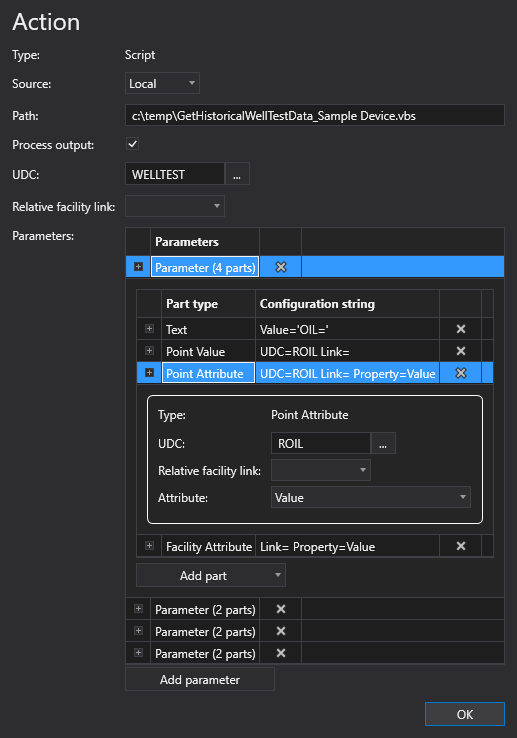
To configure a Script action
A Script action type can be configured from several different places within the well test configuration control. However, the base configuration is always the same. Perform the following steps to configure this type of action, referring to the property definitions below:
- Click to Add action from the drop-down menu.
- Select the Script action type from the Action type list. The action's properties will appear on the right.
- Configure the Source for the script; Local, BSS, or Point.
- Configure the Path to the script.
- Select Process output to tell the Well Test module to process the well test results. When selected, the Well Test module will attempt to process the output as a well test result.
- Select the UDC for the well test record.
- Optional. Select a relative facility tag from the Relative facility link drop-down menu.
- Configure the Parameters for the Script action:
- Click to Add parameter to the Script action. Click the Parameter row to configure the Parts for the parameter as described below.
- Click to Add part to the parameter. Configure the part's properties. Repeat as necessary for each part type.
- Add as many Parameters as required for this Script action.
- Click OK to accept the configuration.
Action Properties
The properties for the Script action type are described below.
| Property | Description | XML |
|---|---|---|
|
Type |
Specifies the action type for the action. |
|
|
Source |
Specifies the path to the script file. Options include Local, BSS, or Point. |
|
|
Path |
Specifies a path to a file to perform additional scripted actions, including processing the well test data and producing the values needed for the well test record. For example:
|
script |
|
Process output |
Indicates whether to execute the script without processing return data into a well test record. When the Process output option is selected, the Well Test module will attempt to process the output as a well test result. |
|
|
UDC |
Specifies the UDC for the point to use when posting the well test record. This is an optional override value. The "Result" UDC defined in the UdcDef element will be used by default. E.g., WELLTEST. Click the browse button to open the Select UDC dialog box and select an appropriate UDC. |
|
|
Relative facility link |
Specifies the relative facility tag to use for the action. E.g., Separator Note: |
|
|
Parameters |
The Script or UIS Command action type may contain optional Parameters, which are used to pass in additional parameters to the action. Each Parameter contains one or more Parts, which are used to build strings that allows further configuration of the parameter. There are four types of Parts, each with associated configuration properties:
Note: The maximum length of the command parameter string for a Send UIS Command message is 1200 characters. CygNet Software will report if a UIS Command message exceeds the maximum parameter length of 1200 characters. To add a parameter
To add a part
|
<Part> |
 to add a new parameter to this action.
 to add a part type and select a Part from the drop-down menu:
Part Type Properties
There are four part types, which are used to build strings that allow further configuration of the parameter. Perform the following steps to configure each type of part:
- Click the desired part type heading to expand the configuration field.
- Configure the properties described below for each part type, and the values will be added to the Configuration String in the part type heading.
- Click
 to delete any unnecessary part type.
Text Part Type
| Property | Description | XML |
|---|---|---|
|
Type |
Specifies the type of value for the part type. There are four part types: Text, Point Value, Point Attribute, and Facility Attribute. |
|
|
Value |
Specifies the value to be used for the text part type. |
Point Value Part Type
| Property | Description | XML |
|---|---|---|
|
Type |
Specifies the type of value for the part type. There are four part types: Text, Point Value, Point Attribute, and Facility Attribute. |
|
|
UDC |
Specifies the UDC to use to obtain the value for this point, point attribute, or facility attribute. Click the browse button to open the Select UDC dialog box and select an appropriate UDC. |
|
|
Relative facility link |
Specifies the base facility tag to use to determine the resolved relative facility tag to use for this point, point attribute, or facility attribute. |
Point Attribute Part Type
| Property | Description | XML |
|---|---|---|
|
Type |
Specifies the type of value for the part type. There are four part types: Text, Point Value, Point Attribute, and Facility Attribute. |
|
|
UDC |
Specifies the UDC to use to obtain the value for this point, point attribute, or facility attribute. Click the browse button to open the Select UDC dialog box and select an appropriate UDC. |
|
|
Relative facility link |
Specifies the base facility tag to use to determine the resolved relative facility tag to use for this point, point attribute, or facility attribute. |
|
|
Attribute |
Specifies a value, a point attribute, or a facility attribute. The available values to use for this field can be found in the CygNet.API Help file under the CygNet.Data.Core > CygNetCoreProperties.CygNetProperty Enumeration section. |
Facility Attribute Part Type
| Property | Description | XML |
|---|---|---|
|
Type |
Specifies the type of value for the part type. There are four part types: Text, Point Value, Point Attribute, and Facility Attribute. |
|
|
Relative facility link |
Specifies the base facility tag to use to determine the resolved relative facility tag to use for this point, point attribute, or facility attribute. |
|
|
Attribute |
Specifies a value, a point attribute, or a facility attribute. The available values to use for this field can be found in the CygNet.API Help file under the CygNet.Data.Core > CygNetCoreProperties.CygNetProperty Enumeration section. |


